Google Inc. has improved its mobile services by rolling out its free Gmail SMS in many countries around the world. Now you can send text messages right from your Gmail inbox.
In order to use this service, you must enable text messaging in your Gmail account.

Enabling Text Messaging in Gmail
- Log into your Gmail account, select the gear icon in the upper right corner, click Settings, and go to the Labs tab.
- Scroll down until you find “Text Messaging (SMS) in Chat” and choose Enable.
- Also Enable the “SMS in Chat gadget” and Save changes.
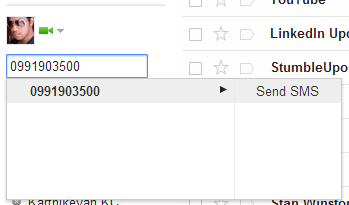
To send an SMS, type the number in the Chat and click Send SMS.
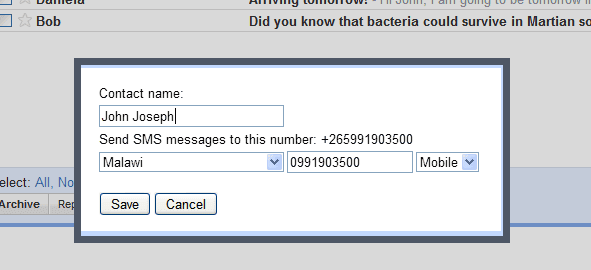
Enter your contact name and choose the country in the pop-up dialogue box. Don’t forget to click Save!
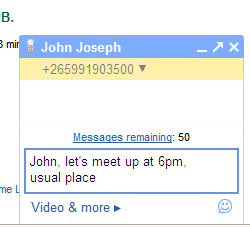
Now just type in your message in the chat box and hit Enter.
Receiving Replies
If your contact replies from his or her phone, you will get the message in your chat box as a reply chat. Gmail stores SMS conversations as regular chats in your Gmail chat history. Now use this free service and stay connected!
To check whether Google has enabled this service for your country, visit the official Google support page for chat.
