Did you know that you can use Gmail’s Canned Responses (now called Templates) feature to save time on repetitive emails? This feature allows you to create pre-written responses that can be easily inserted into your emails with just a few clicks. Whether you are dealing with customer inquiries or daily administrative tasks, setting up canned responses in Gmail will significantly optimise your workflow.
How to enable canned responses in Gmail
Before you can start using templates, you need to turn the feature on. Follow these simple steps:
- To set up canned responses, click on the Settings gear icon in the top right centre of Gmail and select “See all settings”.
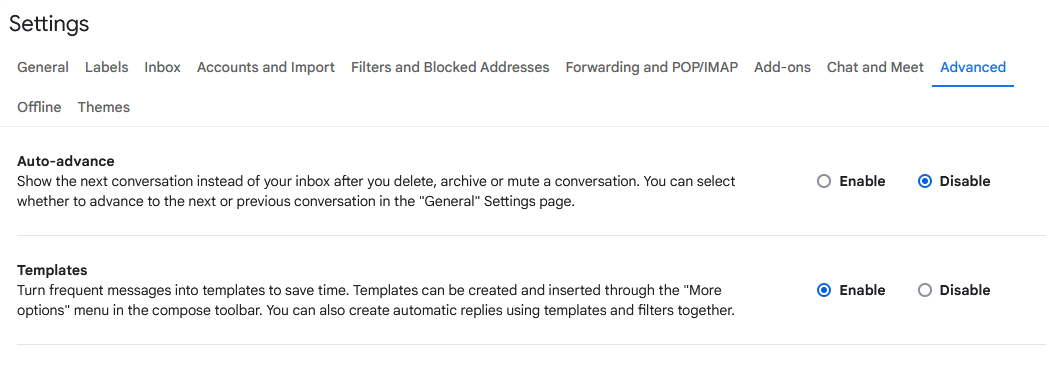
- From there, navigate to the “Advanced” tab.
- Find the “Templates” section and select the “Enable” button.
- Once you have done that, scroll down to the bottom of the page and click “Save Changes”.
How to create canned responses in Gmail
Once enabled, creating a canned response is straightforward. Simply compose a new email, type the message you want to save, and click the three dots (More options) at the bottom of the compose window. Hover over “Templates”, then “Save draft as template”, and finally “Save as new template”. Give it a memorable name, and you are ready to go!
